How to use set-up and navigate your course Padlet.
What is Padlet
Padlet is an online, visual bulletin board that allows students and tutors to create, share, and organise course materials in real-time.
How does the School use Padlet?
Tutors at the School use Padlet to communicate with students in real-time. Padlet also acts as an online space for students to share their work with fellow classmates and access key information in relation to their course. Online course Padlets include weekly Zoom links via the Padlet portal.
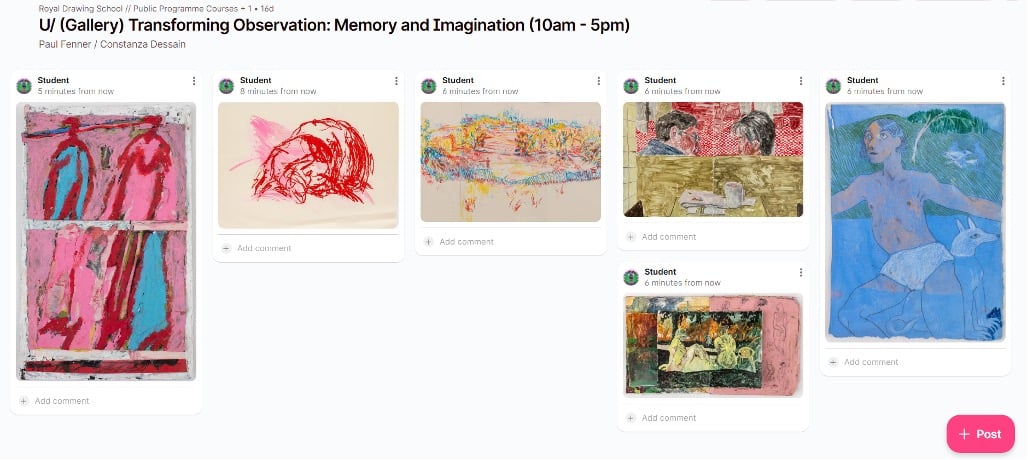
Each course has its own shared Padlet Gallery. This gives students the option to upload images of work produced during class each week, so their classmates and tutor can see.
Logging in to Padlet
New students who have not logged into Padlet before will receive 3 emails from Padlet with their login details.
Login details should be saved. They are required to access key areas of Padlet that the School uses:
Noticeboard
Gallery
Zoom links
Useful resources for your course
Returning students who have used Padlet at the School before will use the same login details as in previous courses.
If these details have been lost or forgotten, you can select 'forgot password' and enter your email details to be sent a password reset link.
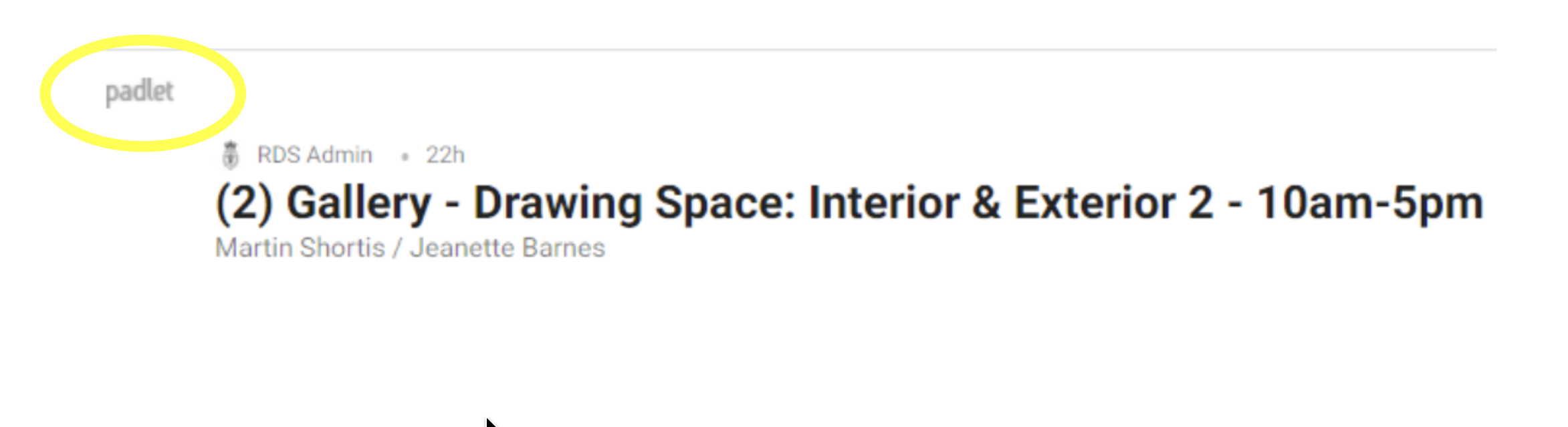
Finding the Padlet noticeboard
Tutors at the School use Padlet to communicate with students in real-time. Padlet also acts as an online space for students to share their work with fellow classmates and access key information in relation to their course.
Each course has its own shared Padlet Gallery. This gives students the option to upload images of work produced during class each week, so their classmates and tutor can see.
Switch between Padlet's by clicking the icon in the top left corner
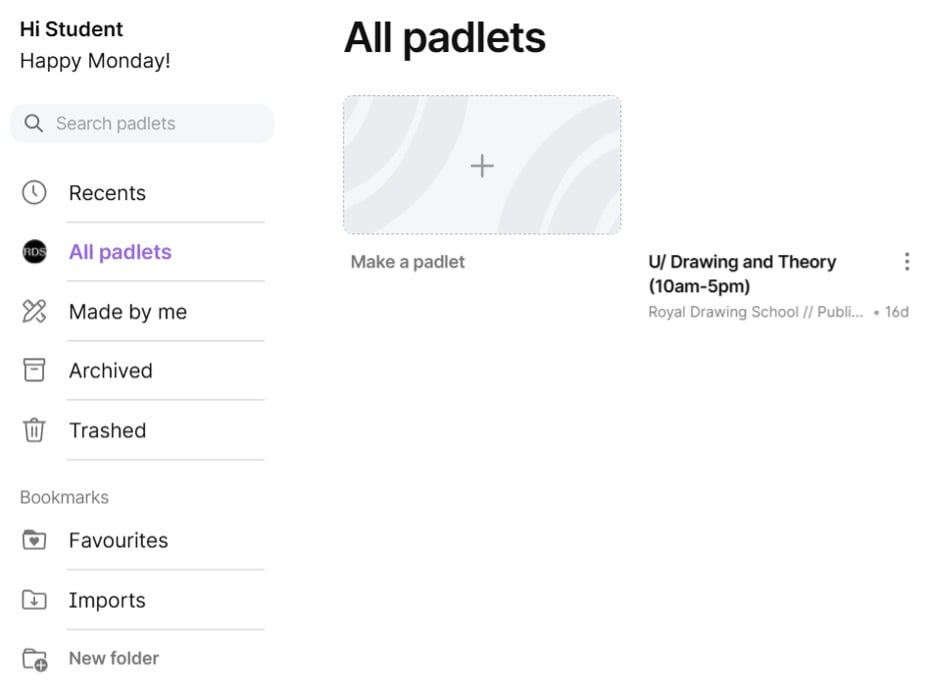
View all Padlets that have been shared with you by clicking the School icon and selecting 'All'
Navigating Padlet dashboards
If you are enrolled in two or more courses at the School that each have a Padlet, you can switch between Padlet's to find the information you need.
To switch between Padlets, head to the Padlet icon in the top left corner of your browser. Clicking the icon will take you to your Padlet dashboard, where you will be able to find the noticeboard and gallery of each class.
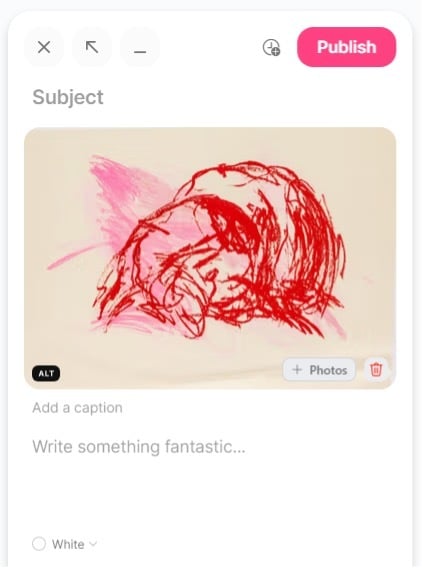
Select the pink addition icon in the bottom right corner of the screen to add an image.
Add details of the artwork in the pop-up box. Select 'Publish' to add it to the gallery.
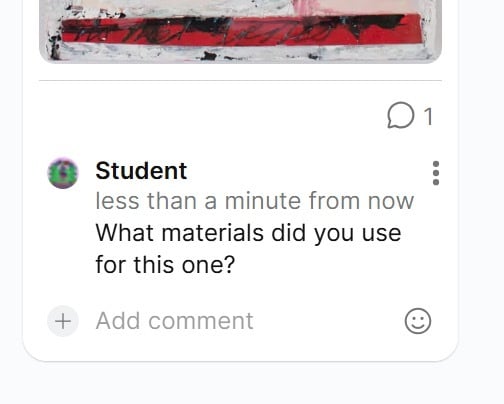
Comment on artworks created by fellow students by selecting 'Add comment' under each image.
Navigating the Padlet gallery
Padlet gallery's allow students to upload images of their work to share with their classmates and tutors.
To add an image file to the Padlet gallery, simply double click anywhere on the gallery page, or select the pink addition ( + ) icon in the bottom right corner of the screen.
Add details about the work in the pop-up box. Students may want to title their work with details of which week it was made, for easy organisation.
When students have entered your relevant information they can select 'Publish' to add it to the gallery.
Please note:
Each image you post will have your username above it so other users know who the work belongs to.
Please only upload images of your own work made during the course.
Please always be respectful when leaving comments.
Sign up to our newsletter
Be the first to hear about new courses, exhibitions, special events and more...